Razer Pro Type Ergo Review: Low-Profile Ergonomics
Looking for the best home office peripherals? Our Razer Pro Type Ergo review breaks down its split low-profile design, AI tools, and daily ergonomics.
Buying guide: best peripherals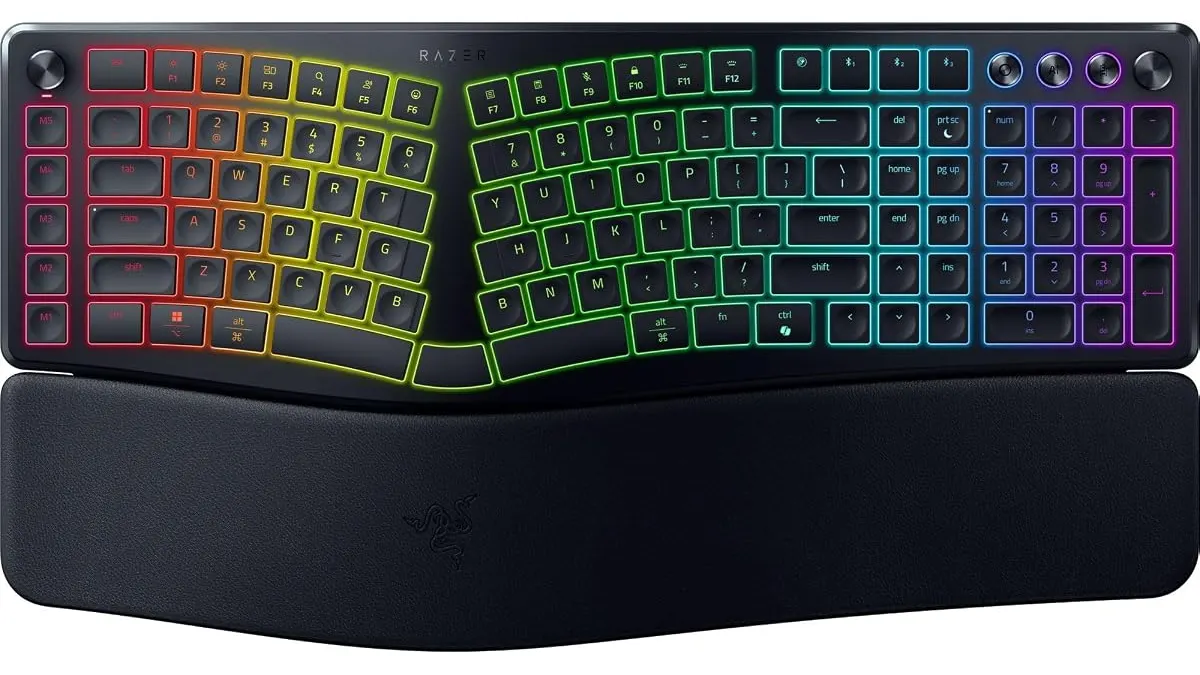 Peripherals
Typing for hours on a flat standard board eventually takes its toll on your wrists and shoulders. The Razer Pro Type Ergo aims to solve that physical fatigue while upgrading your productivity setup. Designed specifically for writers, software developers, and remote workers who want one of the best home office peripherals, this keyboard combines a split ergonomic geometry with fast, low-profile typing.
What it does well
Ergonomic split keyboards often force buyers to choose between physical comfort and typing efficiency. Razer addresses this trade-off directly by mounting ultra-low profile keys onto a gently contoured chassis. The keycaps feature spherical concave indentations that center your fingertips naturally, reducing accidental slips while keeping key travel short and quiet.
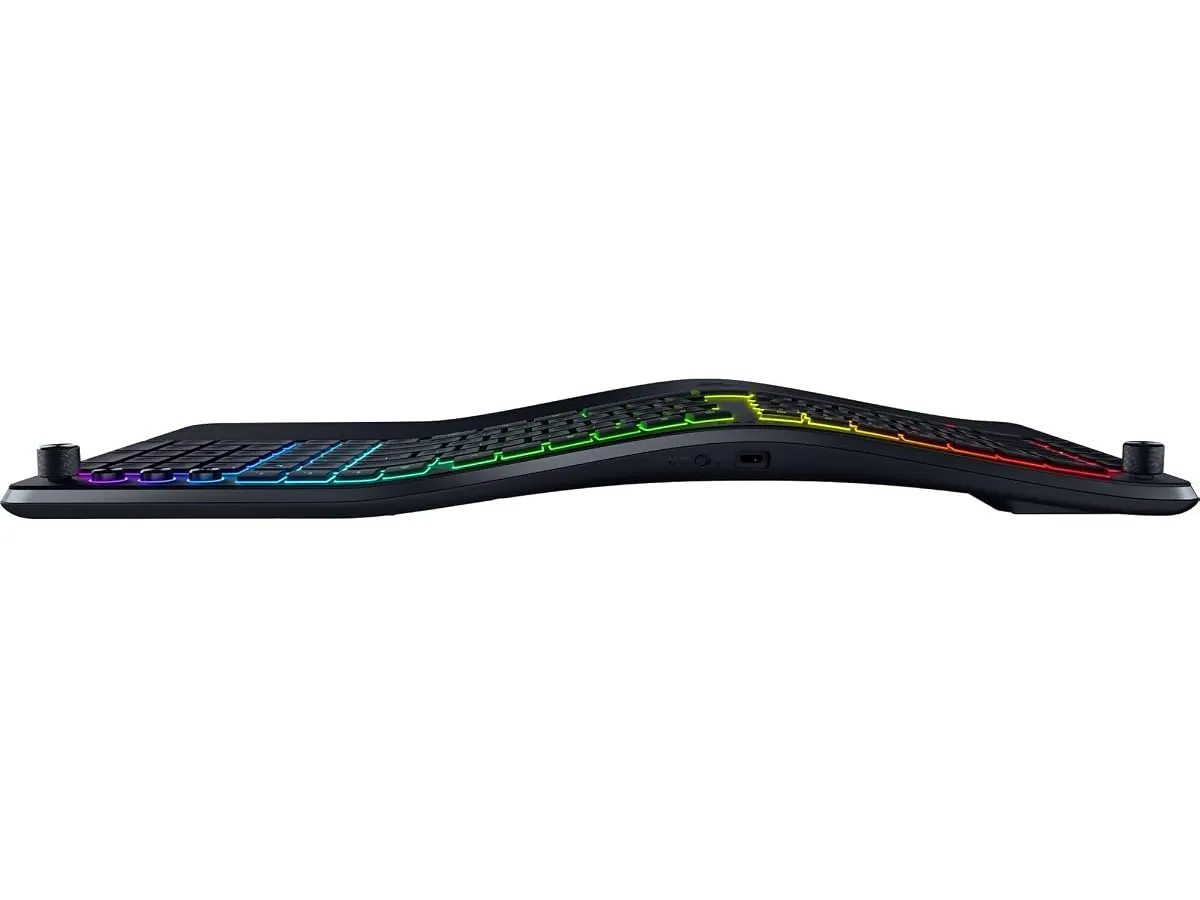
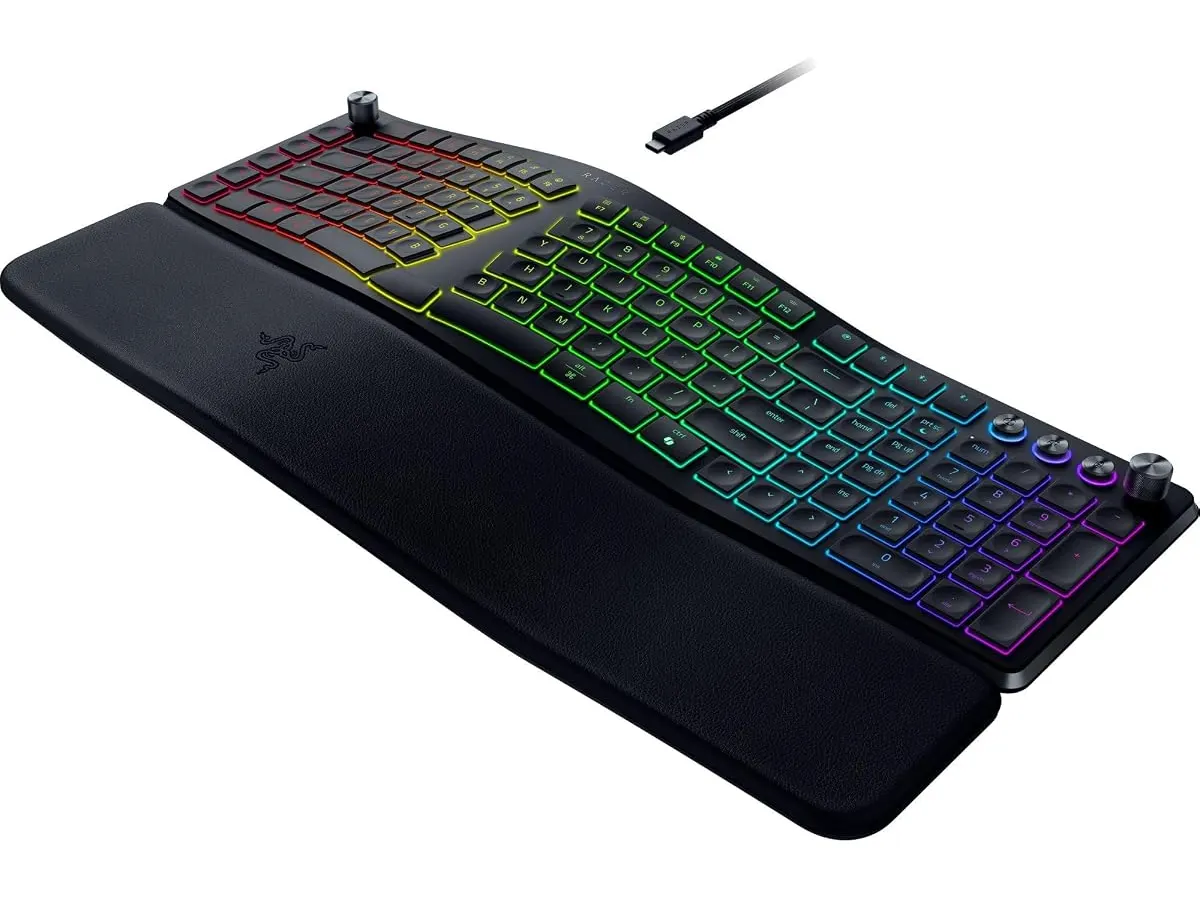
The physical layout centers around posture alignment. A built-in 10-degree tenting slope keeps forearms in a neutral pronation angle, while adjustable feet beneath the base offer secondary 4-degree and 7-degree tilt settings. To prevent muscle tension across split boundaries, Razer includes duplicate B keys on both sides of the divide—a simple detail that prevents missed keystrokes when touch typing at speed.
Physical controls on this board extend far beyond standard media keys. On the top corner sits a physical command dial capable of storing up to eight direct actions, ranging from canvas zoom to timeline scrolling. Five dedicated macro keys line the side edge for quick app switching or frequent shortcuts. Through Razer Synapse software, users can harness AI Prompt Master functions, launching custom artificial intelligence shortcuts with a single keypress.
Long working sessions also benefit from the integrated padded wrist rest. Soft foam cushions the base of your palms, maintaining a level horizontal surface that eliminates the uncomfortable wrist extension typical of raised desk setups.
Key specifications
| Specification | Details |
|---|---|
| Design | Split ergonomic layout with dual B keys |
| Slope & Tilt | 10° fixed slope with 4° or 7° tilt adjustments |
| Key Profile | Ultra-low profile with concave spherical indentations |
| Hardware Controls | Customizable command dial (8 functions) and 5 macro keys |
| Wrist Support | Integrated padded wrist rest |
| Smart Features | AI Prompt Master integration via Razer Synapse |
Where it falls short
The physical integration of the wrist rest comes with a real trade-off. Because the cushioned palm pad is fixed directly to the chassis, you cannot detach it to save desk space or swap it for a leatherette alternative. If you work on a shallow desk, this keyboard occupies a substantial footprint.
Customization and advanced features rely heavily on background software. While basic typing works out of the box, accessing the AI Prompt Master routines and mapping all eight functions on the command dial requires keeping Razer Synapse running. Users on locked-down enterprise laptops without admin privileges will not be able to utilize these advanced features.
The split geometry and dual B keys also demand a short adjustment period. Touch typists accustomed to straight key rows may find themselves missing keys for the first few days.
Who is it for?
This keyboard fits professionals who write code, draft documents, or manage complex workflows for six to ten hours a day. If wrist soreness or forearm fatigue interferes with your work, the combination of a split layout, low travel, and integrated padding offers immediate physical relief. Remote workers looking for a versatile keyboard for remote work with customizable macro hardware will find plenty of utility here.
It is not built for minimalists or frequent travelers who need to pack their rig into a slim laptop sleeve. The fixed wrist rest makes it bulky in a backpack. Furthermore, if your work device strictly blocks third-party background utilities, you won’t be able to map the command dial or execute custom AI triggers.
Alternatives to consider
If you prefer a classic straight layout without a split center, consider traditional high-end mechanical models built for office tasks. A full-sized board like the RedThunder K95 Wireless Mechanical Keyboard provides deep tactile switch travel and standard key spacing, making it easier for traditional typists who dislike split keybeds.
For buyers focusing on full desktop ergonomics, pairing a neutral keyboard with a specialized pointer is essential. If wrist strain affects your mouse arm as well as your typing hand, pairing your setup with an ergonomic mouse like the Logitech MX Master 3S provides tailored hand positioning across your entire desk surface. Alternatively, versatile compact options like the iClever Wireless Mouse offer portable precision for tighter workspaces.
Verdict
The Razer Pro Type Ergo delivers a well-engineered balance between active ergonomic relief and fast desktop control. Its low-profile keys, dual B layout, and customizable dial make daily typing comfortable and efficient. While reliance on Synapse and the permanent wrist rest won’t suit every minimalist setup, it remains an impressive workhorse for long typing sessions. We highly recommend it for anyone building a focused, posture-friendly workstation.
Frequently asked questions
Is the Razer Pro Type Ergo among the best home office peripherals for typing?
Yes, especially for users who suffer from wrist strain during long typing sessions. Its combination of a 10-degree slope, low-profile concave keys, and dedicated macro controls makes it a top performer for desk posture and daily productivity.
How do the dual B keys work on a split keyboard?
The split design places a letter B key on both the left and right key clusters. This accommodates different touch-typing habits, ensuring you never miss a stroke regardless of which hand you use to hit the key.
Does the command dial require Razer Synapse to work?
Basic functions work driverlessly, but mapping custom actions or expanding the dial to its full eight-function capacity requires the Razer Synapse software running on your computer.

Editor
Charly River · SetUpLatam
Charly River curates, reviews and edits SetUpLatam’s home office guides. He checks every product sheet against the manufacturer’s official specifications and cuts what does not help, so you buy right the first time.
You may also like
 Peripherals
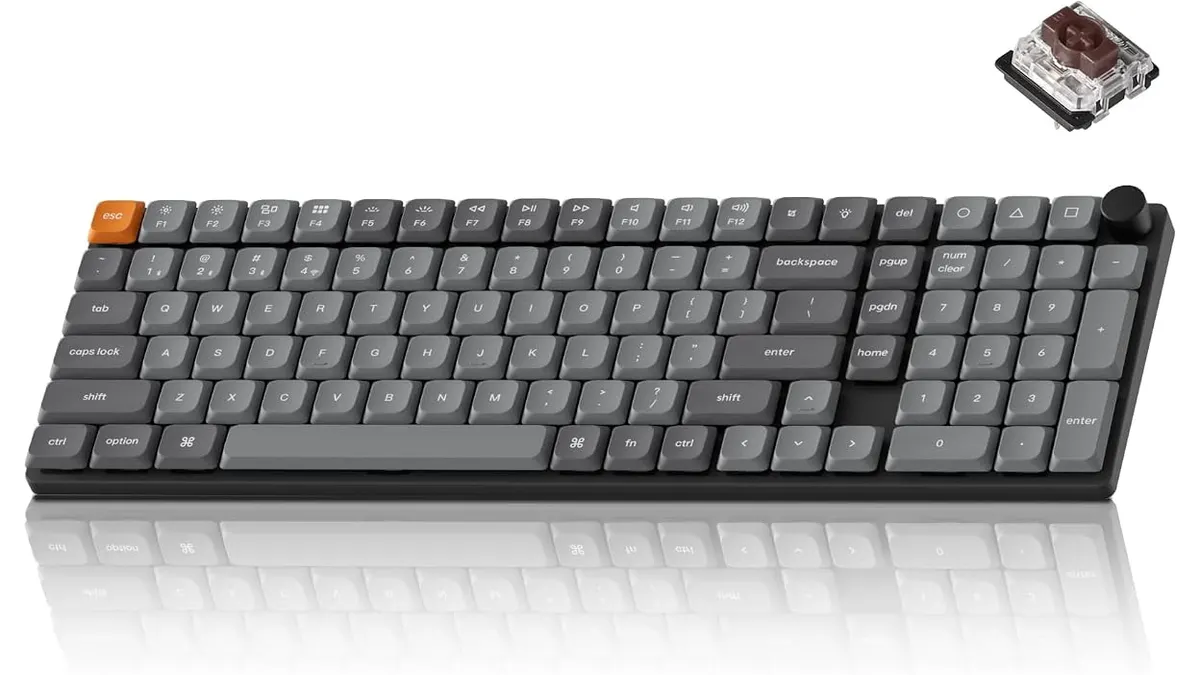
Keychron K17 Max Review: Slim 96% Layout
Deep dive Keychron K17 Max review: a low-profile 96% wireless keyboard built to fit the best home office peripherals setup for daily work.
 Peripherals
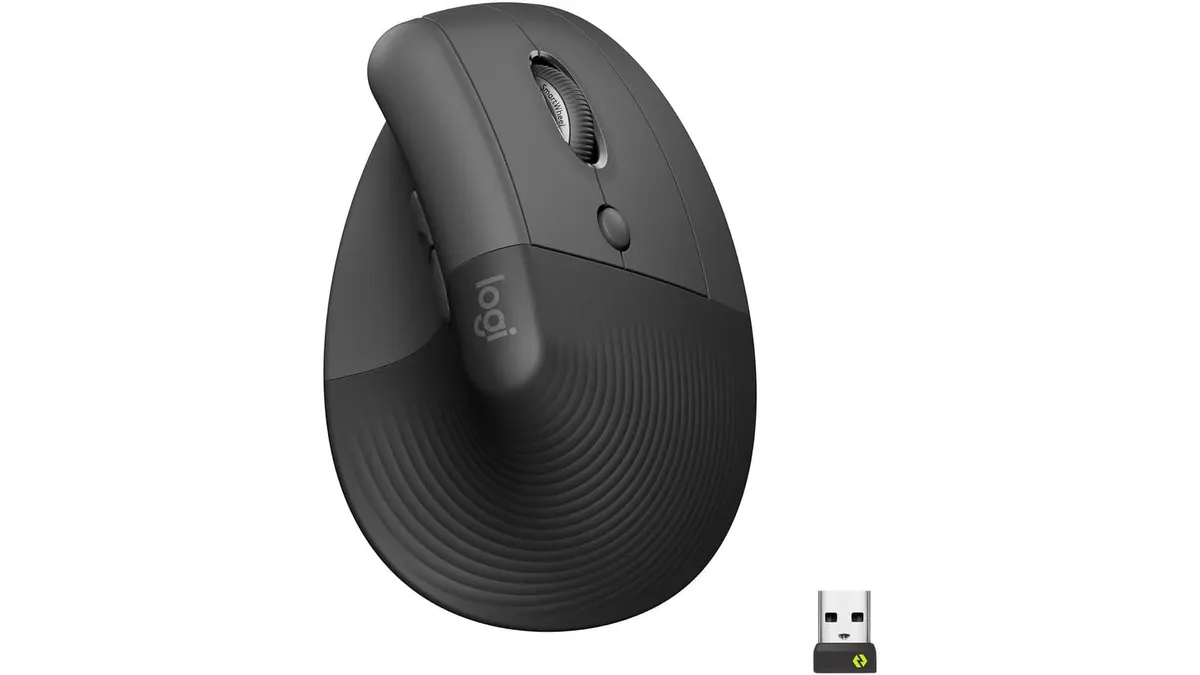
Logitech Lift Vertical Ergonomic Mouse Review
Our Logitech Lift Vertical Ergonomic Mouse review explores if this is one of the best home office peripherals for users with small to medium-sized hands.
 Peripherals
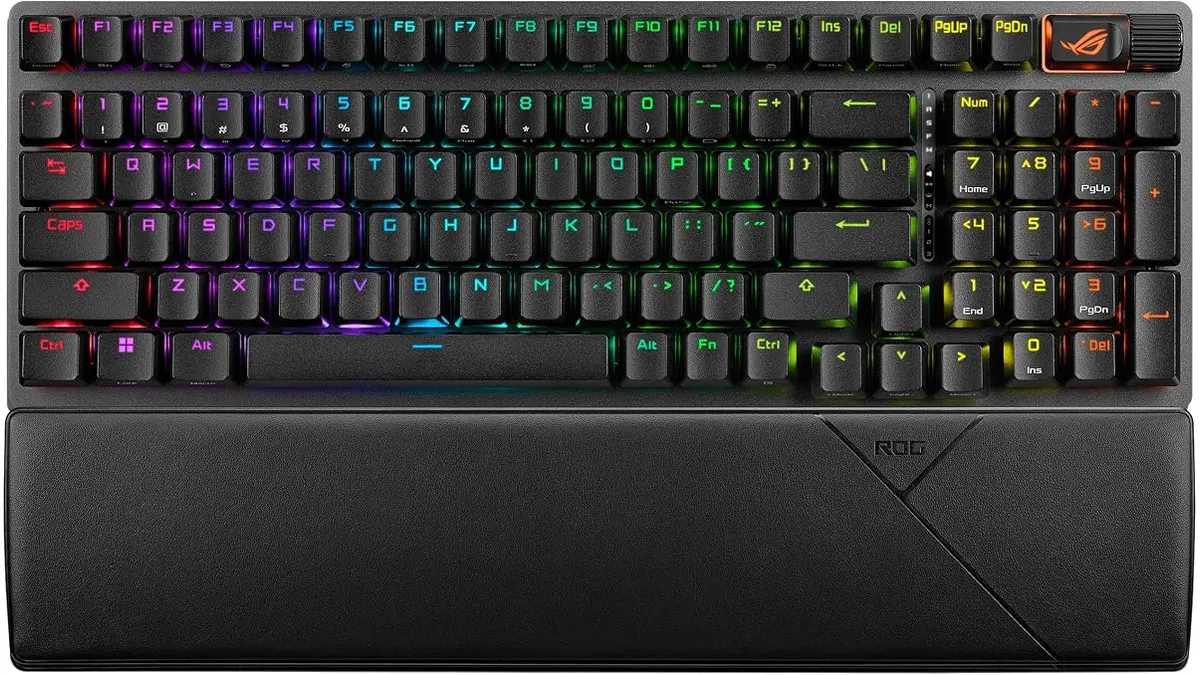
ASUS ROG Strix Scope II 96 Wireless Review
Looking for the best home office peripherals? Our ASUS ROG Strix Scope II 96 Wireless review covers battery life, linear switches, and desktop feel.